
How to Set Up NinjaTrader for Futures Trading
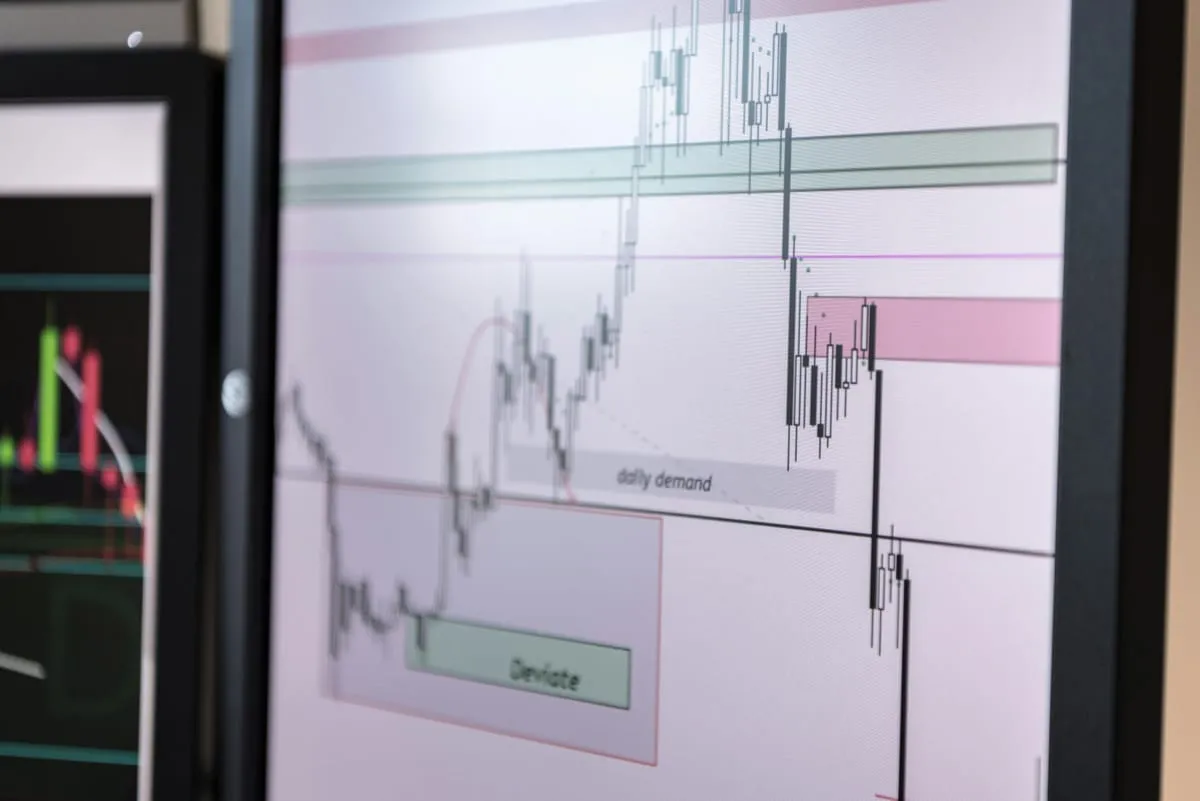
This NinjaTrader setup tutorial covers everything a beginner needs to go from a blank computer to a working futures trading environment, including connecting to a data feed, configuring your charts, and placing your first simulated trade. No prior experience with NinjaTrader is assumed.
NinjaTrader 8 (NT8) is one of the most popular platforms for futures day trading. It’s free to use for simulation, has a massive ecosystem of indicators and strategies, and is supported by most major prop firms including Topstep, Apex Trader Funding, and TopOne Trader. Getting it configured correctly from the start saves significant frustration later.
What You Need Before You Start
Before you open NinjaTrader for the first time, have these in hand:
-
A data feed account: NinjaTrader requires a live market data connection. The two most common options for futures are:
- Rithmic (recommended for most prop firm traders)
- CQG (also common, especially with NinjaTrader Brokerage)
- Your prop firm will tell you which one to use, check their setup instructions
-
Login credentials: Your prop firm will provide a username and password for your evaluation or funded account. These are separate from your NinjaTrader account credentials.
-
A Windows or Mac computer: NinjaTrader 8 runs natively on Windows. Mac users need to run it via Parallels, CrossOver, or a virtual machine.
-
At least 8GB RAM: 16GB is better. NT8 can be memory-intensive with multiple charts open.
Step 1: Download and Install NinjaTrader
- Go to ninjatrader.com and click Download (it’s free)
- Choose the Windows installer (or Mac equivalent)
- Run the installer and follow the prompts, default install location is fine
- When prompted to choose a license type, select Free for now (simulation trading doesn’t require a paid license)
After installation, launch NinjaTrader. The first time it opens, you’ll see the Control Center: the main hub from which everything else is launched.
Step 2: Connect to Your Data Feed
This is the step where most beginners get stuck. NinjaTrader itself is just software, it needs an external data feed to receive live market prices.
Connecting to Rithmic
Rithmic is the most common data provider for prop firm accounts. Your prop firm will have given you:
- A Rithmic username
- A Rithmic password
- The correct server name (varies by firm)
In NinjaTrader:
- From the Control Center, click Connections → Connect
- In the dropdown, select Rithmic
- If Rithmic doesn’t appear in the list, click New to add a new connection profile
- Under Connection Type, select Rithmic
- Enter your Rithmic username and password
- In the Server field, enter the server name provided by your prop firm
- Topstep: typically
Topstep Futures LLC - Apex: check their setup guide for the correct server name
- Topstep: typically
- Click OK, then Connect
A green dot next to the connection name means you’re live. A red dot means the connection failed, double-check your credentials and server name.
Connecting to CQG
The process is nearly identical:
- Click Connections → Connect → New
- Select CQG as the connection type
- Enter your CQG username and password
- Click Connect
Step 3: Add Market Data and Instruments
Once connected, you need to load the instruments (futures contracts) you want to trade.
- From the Control Center, click Tools → Instrument Manager
- Search for the instrument you want, for example, type
ESfor E-mini S&P 500 - Double-click the result or click Add to add it to your watchlist
- Common futures instruments to add:
ES, E-mini S&P 500NQ, E-mini Nasdaq-100MES, Micro E-mini S&P 500MNQ, Micro E-mini Nasdaq-100CL, Crude OilGC, Gold
Continuous Contracts vs. Expiring Contracts: Futures contracts expire on a quarterly schedule (March, June, September, December for most equity index futures). To avoid reloading charts every time a contract rolls, use continuous contracts for charting, in NT8, these are prefixed with @ (e.g., @ES, @NQ). For actual order entry, you’ll use the current front-month contract (e.g., ESH26 for March 2026).
Step 4: Open and Configure a Chart
Now you’ll set up a chart to actually see the market.
- From the Control Center, click New → Chart
- In the dialog that appears, type your instrument name (e.g.,
@ES 03-26or just@ES) - Select your interval type: for beginners, start with a simple 5-minute candlestick chart
- Click OK
Configuring Your Chart
Once the chart opens, right-click anywhere on the chart for settings. Key things to configure:
Adding Indicators:
- Right-click the chart → Indicators
- Common starter indicators:
- VWAP (Volume-Weighted Average Price), shows the average price for the day, weighted by volume. Many traders use it as a key intraday level.
- EMA 9/21: Exponential moving averages that help identify short-term trend direction
- Volume: shows trading volume per bar at the bottom of the chart
Changing Chart Style:
- Right-click → Chart Properties → adjust background color, bar type (candlestick is standard)
Multiple Chart Panels:
- You can split the chart area into multiple panels (e.g., price on top, volume indicator on bottom)
- Right-click an indicator → Move To Panel to reorganize
Step 5: Set Up the DOM (Depth of Market) for Order Entry
The DOM: also called the Order Ladder, is how most futures day traders place orders. It shows the current bid and ask prices and lets you click to place orders at specific price levels.
- From the Control Center, click New → SuperDOM
- Type your instrument name and click OK
- The SuperDOM opens showing a scrolling ladder of prices
Key SuperDOM Elements
- Bid column (left): blue. how many contracts buyers want at each price
- Ask column (right): red. how many contracts sellers are offering at each price
- Current price is in the middle, highlighted
- Buy Market / Sell Market buttons at the bottom for instant fills at current market price
- Position display at the top shows your current position and unrealized P&L
Placing a Practice Order
Make sure you’re in Sim (simulation) mode before placing any trades. Check the account selector at the top of the SuperDOM, it should show something like Sim101 or your prop firm’s simulation account name.
- Select your position size (number of contracts) at the top
- Click a price level on the Ask side to place a Buy Limit order
- Or click Buy Market to enter immediately at the best available price
- Watch the position appear in your P&L display
To exit: click the Flatten button (closes all open positions at market) or click a price on the opposite side of your position.
Step 6: Configure Sim Mode vs. Live Mode
NinjaTrader has two account modes:
- Sim (Simulation): Fake money, real prices. Great for practice.
- Live: Real money connected to your funded account.
Always verify which mode you’re in before placing a trade. The account name displayed in your order entry window will indicate this clearly. Most prop firms fund a separate “demo” or “evaluation” connection, confirm with your firm how this is labeled.
Hotkeys for Simulation:
- You can set keyboard shortcuts for flat/buy/sell in the SuperDOM settings, many active traders use F1/F2 for quick entries
Step 7: Save Your Workspace
Once you have your charts and DOM configured the way you like, save your workspace:
- From the Control Center, click File → Save Workspace As
- Name it something descriptive (e.g., “ES 5min Setup”)
- NinjaTrader will reload this layout automatically each time it starts
Common NinjaTrader Setup Problems and Fixes
| Problem | Likely Cause | Fix |
|---|---|---|
| Can’t connect to Rithmic | Wrong server name | Double-check with your prop firm’s setup guide |
| No data on chart | Instrument subscription missing | Right-click chart → Data Series → confirm instrument and connection |
| Orders not filling in sim | Wrong account selected | Check account dropdown in SuperDOM, select Sim account |
| NT8 crashes on startup | Outdated version | Update NT8 to latest build via the auto-updater |
| Chart shows gaps | Using expired contract | Switch to continuous contract (@ES instead of ESH26) |
Next Steps After Setup
Once your NinjaTrader setup is working, you’ll want to:
- Practice in simulation for at least a few weeks before trading live or starting an evaluation
- Learn your prop firm’s specific rules: daily loss limits, max drawdown, news event restrictions
- Build a trading routine: same startup checklist, same charts, same process every day
- Consider a trading journal to track your sim trades and identify patterns before going live
For more on the prop firm landscape and which evaluation programs might suit you, see our prop firm guide. For learning the methodology behind consistent trading decisions, visit our trading methodology section.
Key Takeaways
- NinjaTrader 8 is free for simulation trading and is supported by most major futures prop firms including Topstep and Apex
- Connect to your data feed (Rithmic or CQG) using credentials provided by your prop firm; a green dot means connected, red means check your credentials and server name
- Use continuous contracts (prefixed with @) for charting but the specific front-month contract (e.g., ESH26) for actual order entry
- The SuperDOM (Depth of Market) is how most futures day traders place orders; always verify you are in Sim mode before placing practice trades
- Save your workspace configuration so NinjaTrader reloads your preferred layout automatically on every startup
Frequently Asked Questions
Do I need to buy NinjaTrader to use it with a prop firm?
No. The free version of NinjaTrader supports simulation trading and connecting to prop firm evaluation accounts. A paid license is only required for certain advanced features and live brokerage trading. Most prop firm evaluations work with the free version.
What is the difference between Rithmic and CQG for NinjaTrader?
Both are data feed and execution providers that connect NinjaTrader to futures markets. Rithmic is more common with prop firms (Apex, many others) and offers Market By Order (MBO) data for order flow analysis. CQG is used by some firms (previously Topstep) and has built-in analytics. Your prop firm will specify which to use.
Why can I not see data on my NinjaTrader chart?
The most common causes are: wrong or expired instrument subscription, incorrect data connection configuration, or using an expired contract symbol. Right-click the chart, check Data Series to confirm the instrument and connection. Switch to a continuous contract (@ES instead of a specific month) if you see gaps.
How much RAM does NinjaTrader need?
Minimum 8GB RAM, with 16GB recommended. NinjaTrader becomes memory-intensive with multiple charts, indicators, and data windows open. If you experience lag or crashes, close unused chart windows and check your available system memory.
Risk Disclaimer: Trading involves substantial risk of loss. Past performance is not indicative of future results. See our full risk disclaimer.